 Herodicus
Jak korzystać z Herodicusa
Pięć minut czytania. Potem liczenie kalorii zajmuje kilka sekund dziennie. Cała apka mieści się w trzech zakładkach: Dziś, Historia i Plan.
Start: najpierw zdjęcie, potem profil
Po rejestracji apka otwiera się na ekranie Dziś i proponuje od razu zrobić zdjęcie pierwszego posiłku. Możesz tak zrobić, wynik dostaniesz bez uzupełniania czegokolwiek. Profil przyda się zaraz potem, żeby paski pokazywały, ile to jest u Ciebie, a nie u kogoś przeciętnego. Wejdziesz w niego przyciskiem pod pierwszym wynikiem albo zakładką Plan → 1 Profil. Wpisujesz płeć, wiek, wzrost, wagę i cel wagi, a kalorie i makro na dzień policzą się same. Profil zapisuje się automatycznie, nie ma przycisku „Zapisz”. Konfiguracja ma trzy kroki, widzisz je na górze jako 1 Profil, 2 Ustawienia, 3 Twój plan. Przycisk „Dalej” na dole prowadzi do następnego.
Gdy Twoja waga się zmieni, wpisz nową i kliknij „Przelicz cele z moich danych”. Cele przeliczą się pod nową wagę.
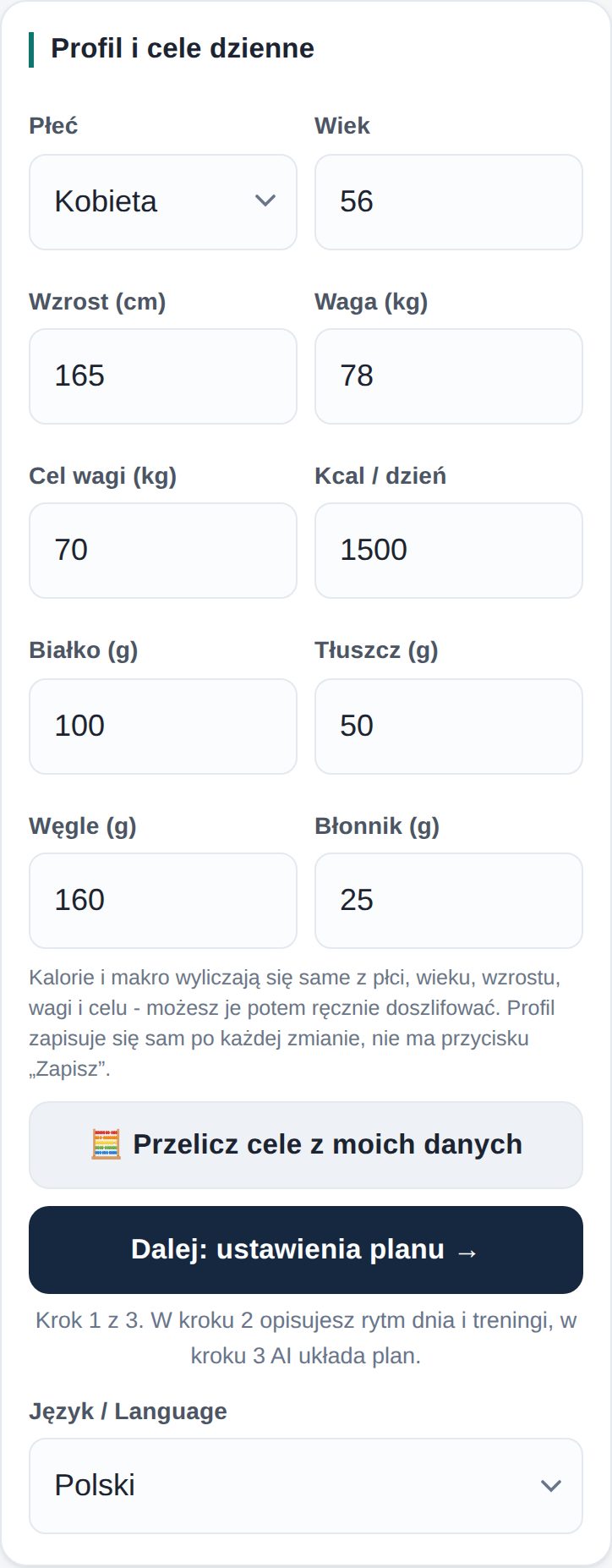
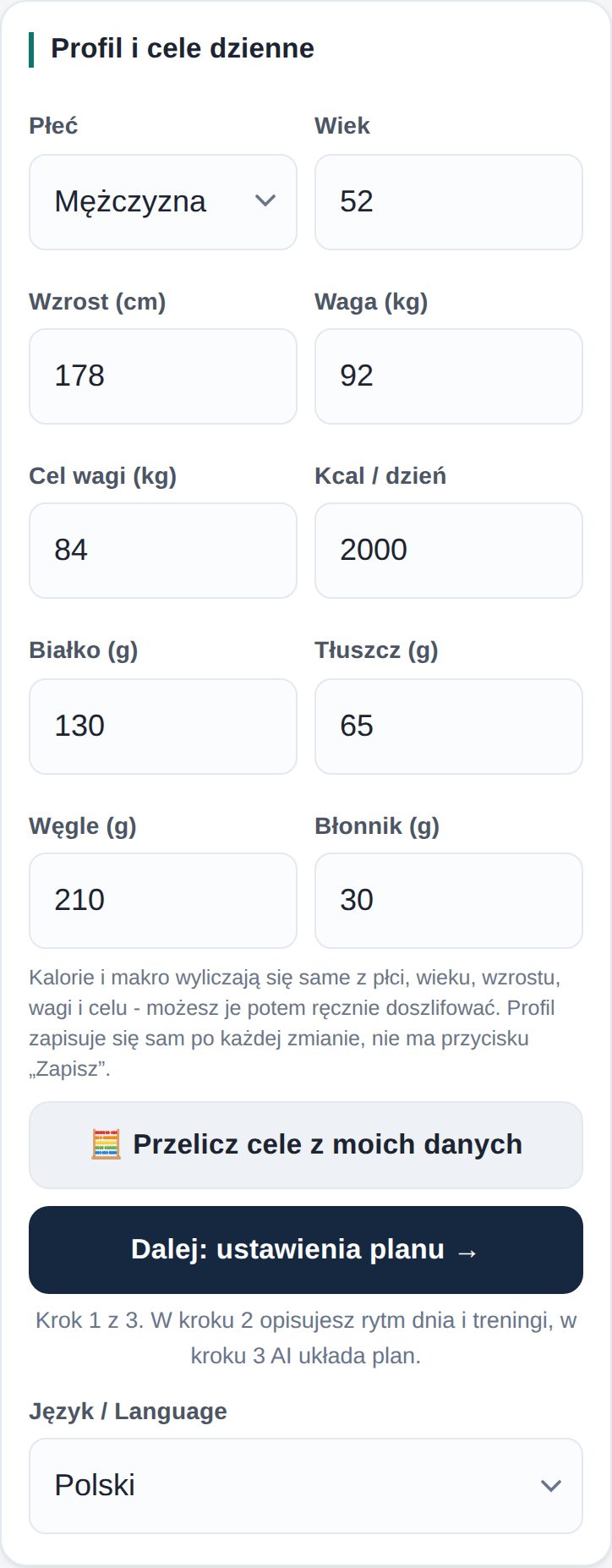
Dwa przykłady: kobieta 56 lat, 165 cm, 78 kg, cel 70 kg (ok. 1500 kcal) i mężczyzna 52 lata, 178 cm, 92 kg, cel 84 kg (ok. 2000 kcal). Twoje liczby policzą się z Twoich danych.
Dodaj posiłek: zdjęcie albo jedno zdanie
Na ekranie Dziś możesz najpierw wpisać krótki opis (opcjonalnie, np. „2 sznycle, ziemniaki, bez sosu”), a potem kliknąć „📷 Zdjęcie posiłku”. AI rozpozna, co jest na talerzu, i policzy kalorie oraz makro. Nie masz zdjęcia? Sam opis wystarczy: wpisz go i kliknij „Dodaj z samego opisu, bez zdjęcia”.
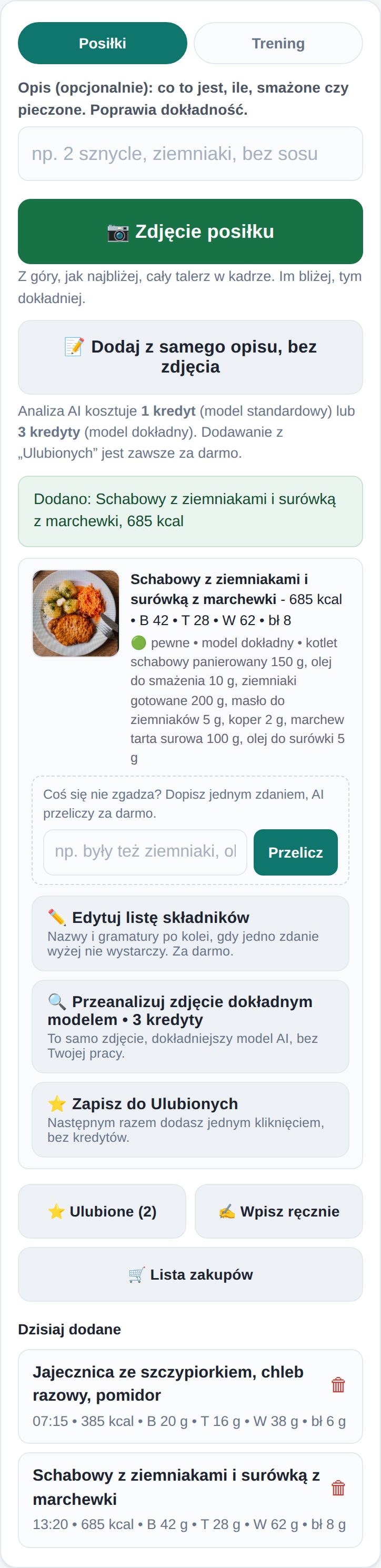
Dobre zdjęcie dla AI to zdjęcie z góry, przy dziennym świetle, zrobione jak najbliżej talerza, ale tak, żeby cały talerz był w kadrze. Im bliżej, tym lepiej AI widzi, co jest czym: sprawdziliśmy to, różnica jest wyraźna. Połóż obok widelec albo dłoń, wtedy AI lepiej oceni wielkość porcji. Zdjęcie nie musi być ładne, ma być czytelne.
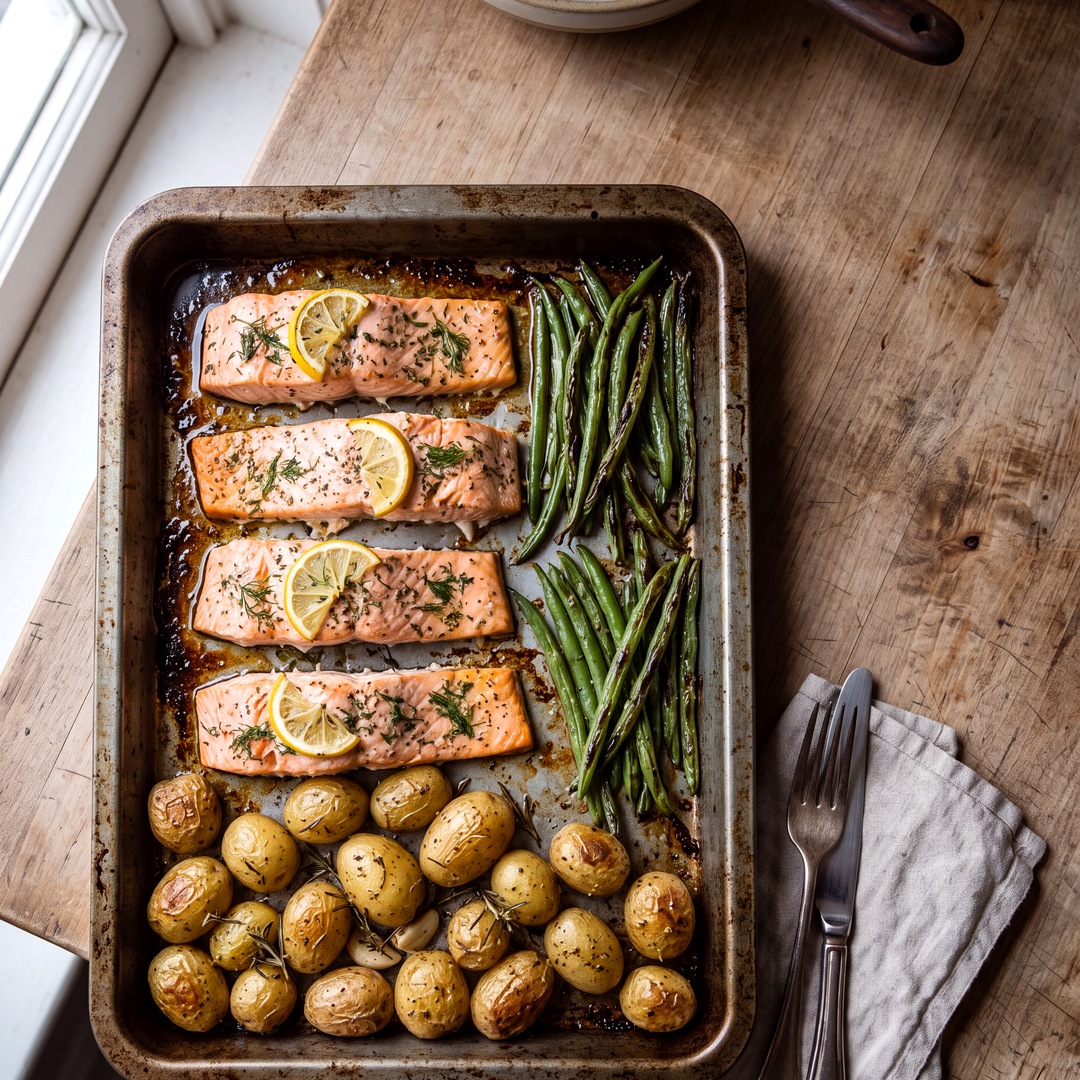
Poniżej zdjęcie prawdziwego obiadu z pojemników: pieczone ziemniaki, warzywa z blachy i pieczony filet. Tak wygląda zdjęcie, które AI czyta dobrze: z góry, blisko, każdy składnik widoczny.
Co dopisać w opisie, a czego nie
Opis nie jest obowiązkowy, ale jedno zdanie potrafi dużo. Znaczenie mają: co to jest, mniej więcej ile (sztuki, pół talerza, gramy, jeśli znasz), czy smażone czy pieczone (olej ze smażenia to 50 do 150 kcal różnicy), czy było masło, sos, majonez albo cukier w napoju. Nie mają znaczenia: z jakiego dokładnie mięsa był kotlet (szynka czy udko z kurczaka to niemal to samo białko), marka produktu, przyprawy.
Przykład wystarczającego opisu: „2 sznycle pieczone w piekarniku, ziemniaki i warzywa z blachy, bez sosu”. Tyle. AI wie, co z tym zrobić.
Gdy AI się pomyli
AI myli się jak człowiek. Potrafi wziąć żółtą fasolkę za frytki, jajka sadzone za omlet albo nie zauważyć ziemniaków pod warzywami. Najprostsza poprawka to jedno zdanie w polu pod wynikiem: „były też ziemniaki, ok. 200 g” albo „to nie omlet, to jajka sadzone” albo „pieczone, nie smażone”. Klikasz Przelicz i AI poprawia listę i liczy od nowa. To nic nie kosztuje. Gdy AI samo nie jest pewne, zadaje w tym miejscu jedno pytanie, odpowiadasz jednym słowem.
Gdy jedno zdanie nie wystarcza, jest „✏️ Edytuj listę składników”: każdy składnik osobno, nazwa i ilość przyciskami minus i plus (po 10 g), usuwanie, dodawanie. Przyciski ½, ¾, 1¼ i 1½ zmieniają całą porcję naraz. „Pół talerza” każdy oceni łatwiej niż gramy. Na koniec „Przelicz po poprawce”, też za darmo.
Każda poprawka uczy AI Ciebie. Po dwóch, trzech razach AI przestanie widzieć frytki tam, gdzie masz fasolkę. Nauczy się też, że Twoje porcje są większe albo mniejsze niż typowe.
Drugi przycisk to „🔍 Przeanalizuj zdjęcie dokładnym modelem” (3 kredyty): to samo zdjęcie, dokładniejszy model AI, bez Twojej pracy. Używasz go, gdy nie wiesz, co poprawić, a wynik wygląda źle. Jeśli chcesz mieć dokładny model zawsze, przełącz u góry Model AI: Standardowy / Dokładny. Przełącznik pokazuje cenę wybranego modelu: 1 kredyt przy standardowym, 3 kredyty przy dokładnym. Trzeci, „⭐ Zapisz do Ulubionych”, opisuję w kroku 4. Jeśli masz wagę kuchenną i etykietę, pod linkiem „Zaawansowane” możesz wpisać kalorie i makro ręcznie.
Patrz na paski, nie na liczby
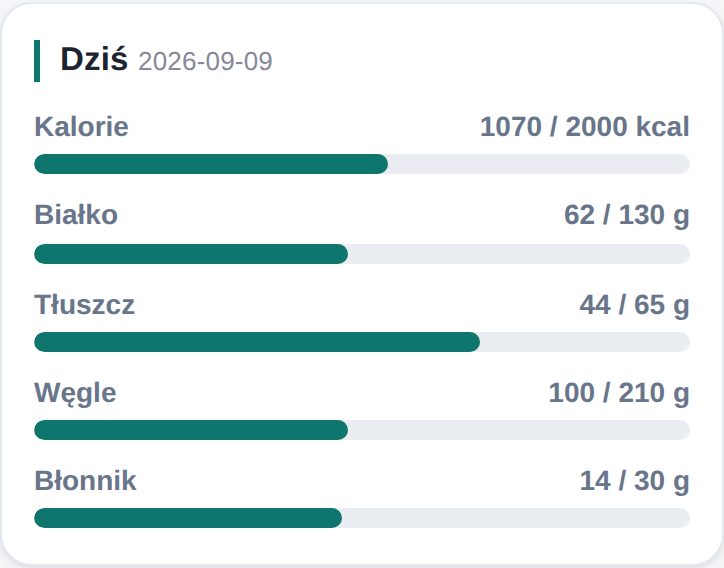
Pięć pasków u góry ekranu Dziś pokazuje, ile z dziennego celu masz już za sobą. Pod paskami apka podpowiada, co zrobić, np. „mało białka jak na tę porę” albo „blisko limitu kalorii”. Krótko i konkretnie.
Powtarzalne posiłki dodawaj jednym kliknięciem
Jesz codziennie tę samą owsiankę? Po pierwszej analizie kliknij „⭐ Zapisz do Ulubionych”. Od tej pory znajdziesz ją pod przyciskiem „⭐ Ulubione” na ekranie Dziś. Rozwijasz listę, klikasz „+ Zjadłem” i posiłek jest w dzienniku. Bez zdjęcia, bez kredytów. Jeśli zjadłeś połowę albo podwójną porcję, wybierz ½ albo ×2.
Zapisane dania pomagają też AI. Przy kolejnych zdjęciach porównuje talerz z Twoją listą i trafia lepiej.
Znasz wartości z etykiety albo z przepisu? Obok Ulubionych jest przycisk „✍️ Wpisz ręcznie”. Podajesz nazwę, kalorie i makro. Danie od razu trafia do dzisiejszego dziennika i do Ulubionych. Zero kredytów. To jest też sposób na prowadzenie dziennika, gdy kredyty się skończą.
Plan AI: dieta, zakupy i trening
W Plan → Ustawienia opisz swój rytm dnia (o której jesz i jak duże posiłki). Wybierz cel treningowy: redukcja, masa, siła, kondycja, zdrowie albo „nie trenuję”. Od tego celu zależy, jaki trening ułoży AI. Opisz też swoje treningi i to, co lubisz jeść. Wszystko zapisuje się samo.
Kliknij „Generuj plan (AI)” (12 kredytów). Generowanie trwa 1 do 3 minut i działa w tle. Możesz w tym czasie zamknąć apkę.
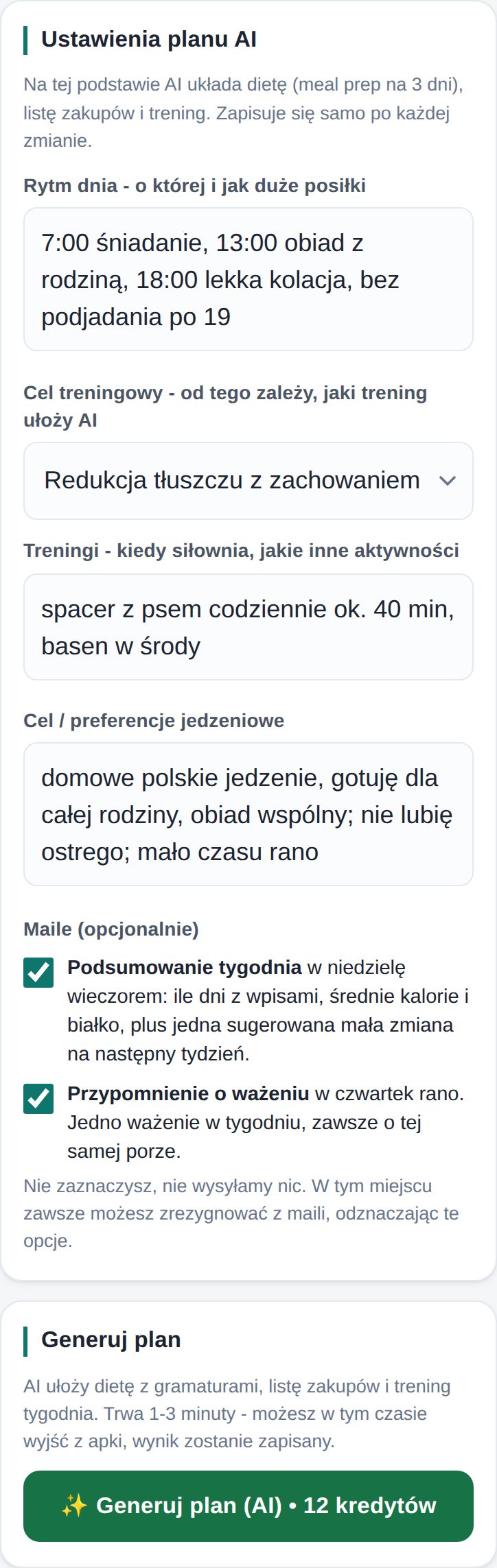
Gotowy plan znajdziesz w zakładce Twój plan. Ma cztery części: Dieta (posiłki na 3 dni z gramaturami, do ugotowania na raz), Zakupy, Trening na tydzień i Wskazówki.
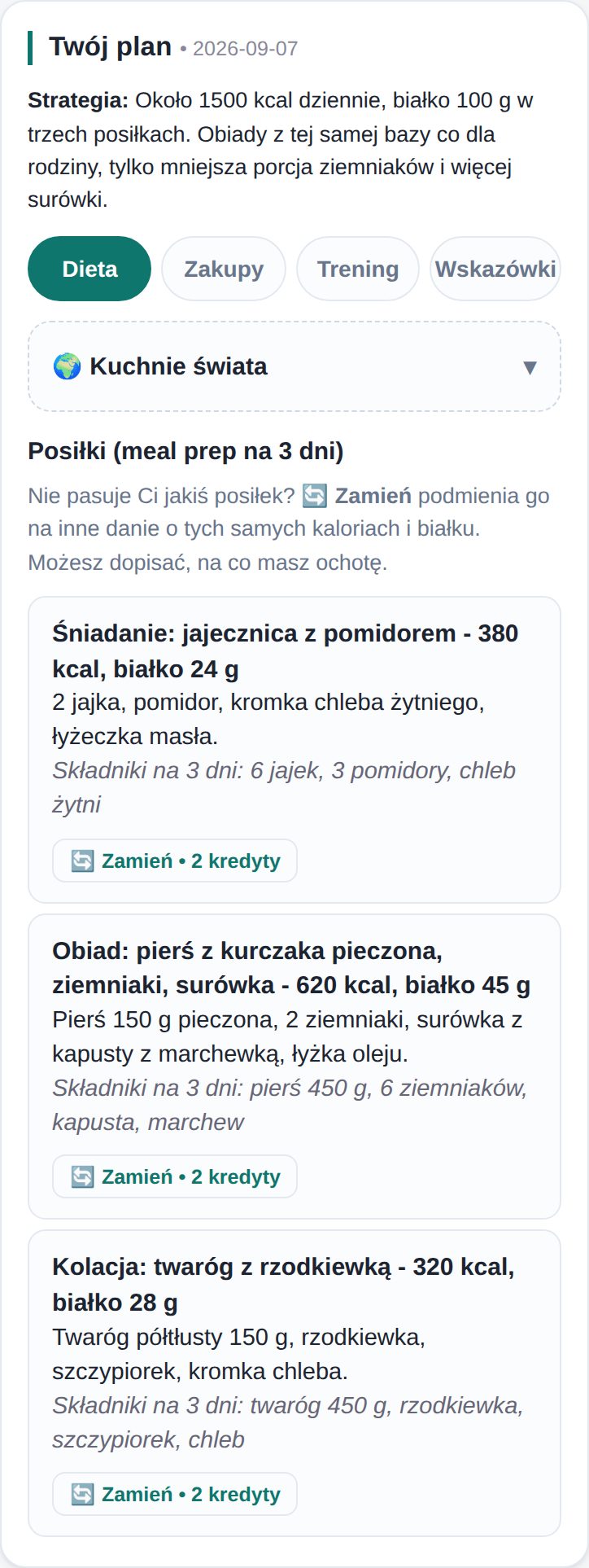
Nie pasuje Ci jedno danie? Pod każdym posiłkiem jest przycisk „🔄 Zamień” (2 kredyty). AI podmienia tylko ten jeden posiłek na inny o tych samych kaloriach i białku. Możesz dopisać, na co masz ochotę, np. „bez ryb” albo „coś na słodko”.
Chcesz całą dietę w innej kuchni, np. włoskiej albo tajskiej? Nad listą posiłków jest sekcja „🌍 Kuchnie świata” (7 kredytów). Każda wygenerowana wersja zostaje zapisana na liście, a przy każdej jest przycisk „Przełącz”. Przełączanie między gotowymi wersjami jest za darmo.
Lista zakupów
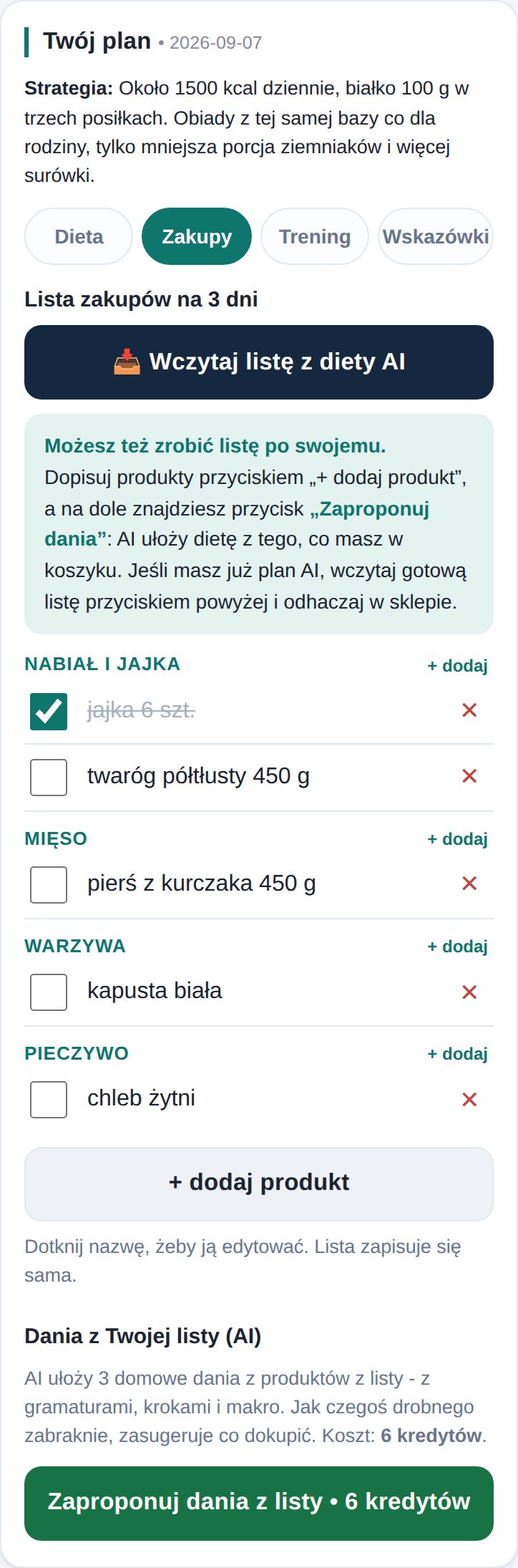
Do listy zakupów wchodzisz z ekranu Dziś przyciskiem „🛒 Lista zakupów” albo przez Plan → Twój plan → Zakupy. Masz dietę z AI? Kliknij „📥 Wczytaj listę z diety AI” i odhaczaj produkty w sklepie.
Kupujesz po swojemu? Dopisz produkty przyciskiem „+ dodaj produkt”. Potem możesz kliknąć „Zaproponuj dania z listy” (6 kredytów): AI ułoży 3 domowe przepisy z tego, co masz w koszyku.
Trening: odhaczaj i podmieniaj
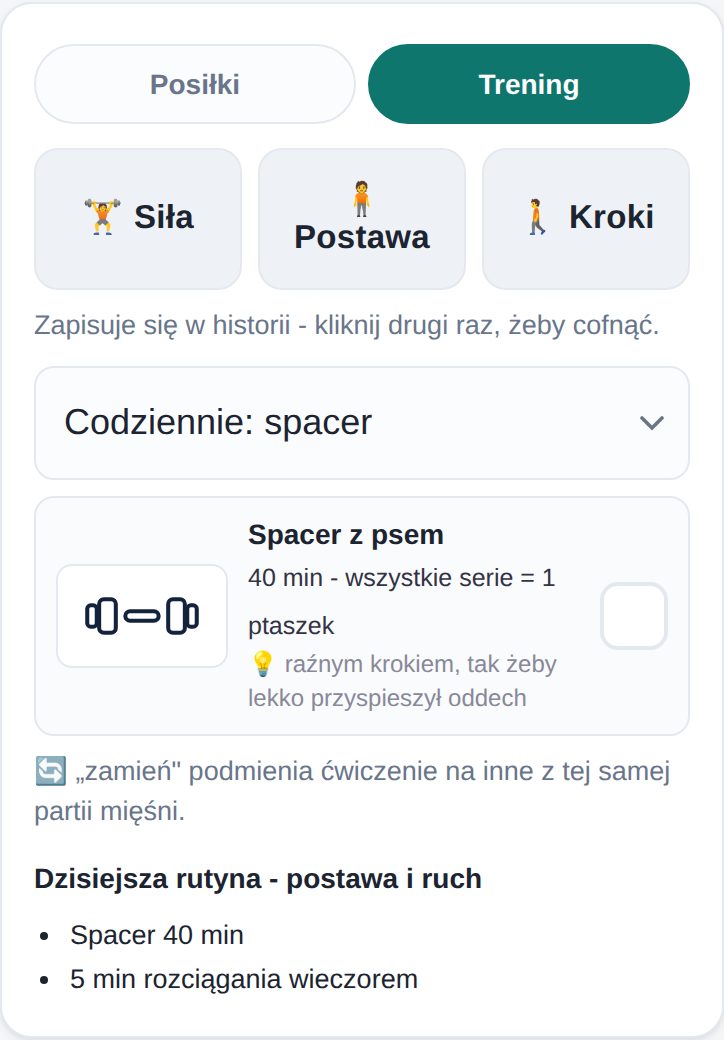
Na ekranie Dziś przełącz się na Trening. Apka sama pokazuje dzisiejszy dzień z planu. Każde ćwiczenie ma liczbę serii i wskazówkę techniczną, a większość także zdjęcia pozycji (dotknij, żeby powiększyć).
Maszyna zajęta albo jej nie ma? Kliknij „🔄 zamień”. Dostaniesz inne ćwiczenie na tę samą partię mięśni, bez kredytów. Przyciski Siła, Postawa i Kroki zapisują aktywność w historii.
Kredyty: co jest za darmo, a co nie
Na start dostajesz 50 kredytów. Nie ma obowiązkowego abonamentu. Kredyty nie wygasają, miesiąc przerwy nic nie kosztuje. Jak wolisz, możesz włączyć opcjonalną subskrypcję miesięczną.
Za kredyty: analiza zdjęcia lub opisu 1 kredyt (model standardowy) lub 3 kredyty (model dokładny), zamiana jednego posiłku w planie 2, plan AI 12, kuchnia świata 7, dania z listy zakupów 6.
Za darmo, zawsze: poprawka wyniku i odpowiedź na pytanie AI, dziennik posiłków, Ulubione (dodawanie jednym kliknięciem i wpisywanie ręczne), historia i wykresy, lista zakupów, trening z odhaczaniem, plan, który już masz.
Jak wydawać najmniej: na początku zrób zdjęcia posiłków, które jesz regularnie, i każdy zapisz przyciskiem „⭐ Zapisz do Ulubionych”. Potem dodajesz je z listy jednym kliknięciem i nie płacisz nic. Kredyty zostają na nowe dania i na plany. Przy takim podejściu 50 kredytów starcza na długo, a pakiet od 24,99 zł na jeszcze dłużej. Saldo widzisz pod błyskawicą ⚡ u góry.
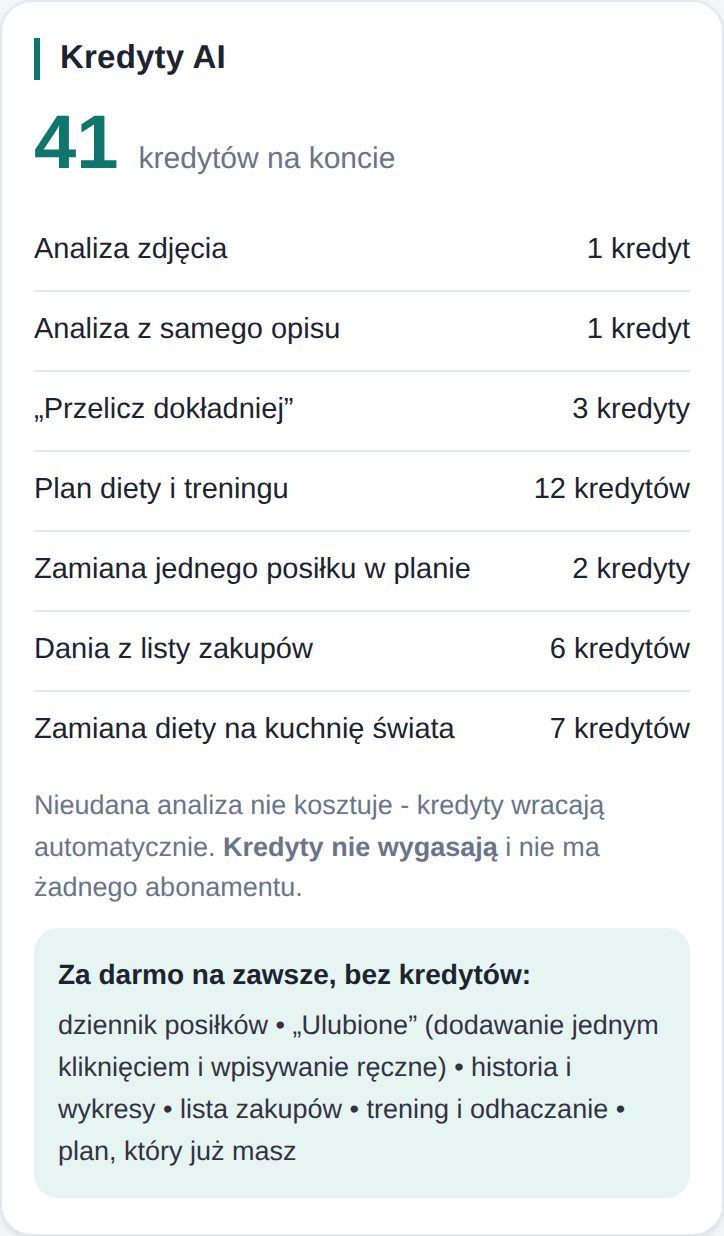
Nieudana analiza nic nie kosztuje. Doładowanie to jednorazowa płatność BLIK-iem lub kartą, albo opcjonalna subskrypcja miesięczna (anulujesz kiedy chcesz).
Historia i wiadomość do twórcy
Zakładka Historia pokazuje ostatnie 14 dni. Dotknij dnia, żeby zobaczyć, co wtedy było w dzienniku.
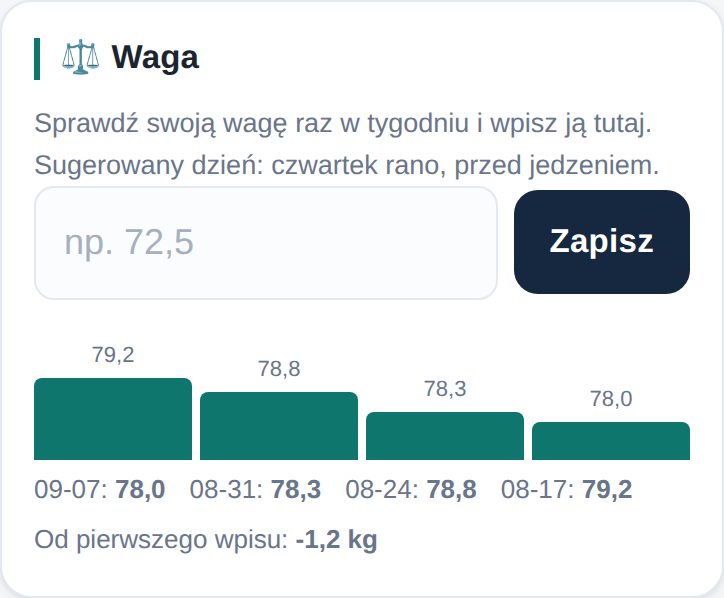
Na górze Historii jest karta ⚖️ Waga. Waż się raz w tygodniu, rano, przed jedzeniem, i wpisz wynik. Apka rysuje wykres, a przy spadku wagi robi Ci małe fanfary. Cele dzienne się nie zmieniają, chyba że przeliczysz je w Profilu. W Plan → Ustawienia → Maile możesz zaznaczyć przypomnienie o ważeniu w czwartek rano i podsumowanie tygodnia w niedzielę wieczorem z jedną małą zmianą na następny tydzień. Bez zaznaczenia nie wysyłamy nic.
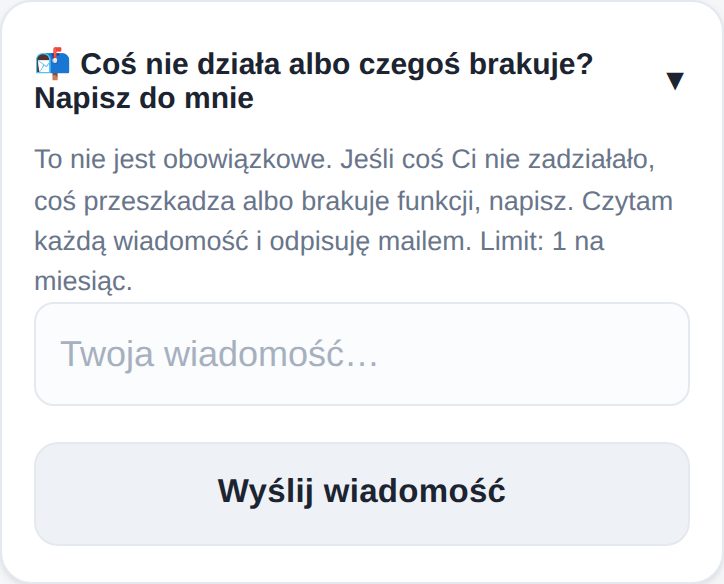
Na dole zakładki Historia jest zwinięta karta „Coś nie działa albo czegoś brakuje? Napisz do mnie”. Nie jest obowiązkowa. Jeśli coś nie zadziałało albo czegoś Ci brakuje, napisz, a odpiszę mailem. Ta apka rośnie z Waszych uwag.
3 nawyki na dobry start
- Zdjęcie przed pierwszym kęsem. Po jedzeniu nikt nie pamięta, ile było ryżu.
- Zapisuj powtarzalne dania. Po tygodniu większość posiłków dodasz jednym kliknięciem.
- Wieczorem spójrz na paski. Nie na liczby, na paski. Jeden rzut oka mówi, czy dzień był dobry.
Herodicus 2500 lat temu leczył dietą i ruchem. Tu jest tak samo, tylko liczeniem zajmuje się AI. Ty jesz, trenujesz i robisz zdjęcia.
How to use Herodicus
Five minutes of reading. After that, counting calories takes a few seconds a day. The whole app fits in three tabs: Today, History and Plan.
Start: photo first, profile second
After signing up the app opens on the Today screen and suggests taking a photo of your first meal straight away. You can do exactly that, the result comes without filling in anything. The profile is useful right after, so the bars show what a meal means for you rather than for an average person. You get there with the button under your first result, or through the Plan → 1 Profile tab. You enter sex, age, height, weight and target weight, and daily calories and macros are calculated for you. The profile saves automatically, there is no Save button. Setup has three steps, shown at the top as 1 Profile, 2 Settings, 3 Your plan. The “Next” button at the bottom takes you to the next one.
When your weight changes, enter the new value and tap “Recalculate targets from my data”. The targets are recalculated for the new weight.
Two examples: a woman, 56, 165 cm, 78 kg, target 70 kg (about 1500 kcal) and a man, 52, 178 cm, 92 kg, target 84 kg (about 2000 kcal). Your numbers are calculated from your data.
Add a meal: a photo or one sentence
On the Today screen you can first type a short description (optional, e.g. “2 schnitzels, potatoes, no sauce”), then tap “📷 Photo of your meal”. The AI recognises what is on the plate and counts calories and macros. No photo? The description alone is enough: type it and tap “Add from description only, no photo”.
A good photo for the AI is taken from above, in daylight, as close to the plate as possible while keeping the whole plate in the frame. The closer, the better the AI sees what is what: we tested it, the difference is clear. Put a fork or your hand next to the plate so the AI can judge the portion size. The photo does not have to be pretty, it has to be clear.
Below is a photo of a real lunch in meal boxes: roasted potatoes, tray-roasted vegetables and a baked fillet. This is what a photo the AI reads well looks like: from above, close, every ingredient visible.
What to add in the description, and what not
The description is optional, but one sentence goes a long way. What matters: what it is, roughly how much (pieces, half a plate, grams if you know), fried or baked (frying oil is a 50 to 150 kcal difference), whether there was butter, sauce, mayo or sugar in a drink. What does not matter: exactly which meat the cutlet was (ham or chicken thigh is nearly the same protein), the brand, the spices.
An example of a sufficient description: “2 schnitzels baked in the oven, potatoes and tray-roasted vegetables, no sauce”. That is all. The AI knows what to do with it.
When the AI gets it wrong
The AI makes mistakes like a person does. It can take yellow beans for fries, fried eggs for an omelette, or miss the potatoes under the vegetables. The simplest fix is one sentence in the field under the result: “there were potatoes too, about 200 g” or “not an omelette, fried eggs” or “baked, not fried”. Tap Recalculate and the AI corrects the list and counts again. It costs nothing. When the AI itself is unsure, it asks one question in that same place and you answer in a word.
When one sentence is not enough, there is “✏️ Edit the ingredient list”: each ingredient separately, name and amount with minus and plus buttons (10 g steps), remove, add. The ½, ¾, 1¼ and 1½ buttons change the whole portion at once. “Half the plate” is easier to judge than grams. Finally “Recalculate after fix”, also free.
Every fix teaches the AI about you. After two or three times it stops seeing fries where you have beans. It also learns that your portions are bigger or smaller than typical.
The second button is “🔍 Analyse the photo more precisely” (3 credits): same photo, stronger model, no work for you. Use it when the result looks wrong and you do not know what to fix. The third, “⭐ Save to Favourites”, is described in step 4. If you have a kitchen scale and a label, the “Advanced” link lets you type calories and macros by hand.
Look at the bars, not the numbers
The five bars at the top of the Today screen show how much of your daily target you have already eaten. Under the bars the app tells you what to do, e.g. “low on protein for this time of day” or “close to your calorie limit”. Short and specific.
Add repeat meals with one tap
Eat the same oats every day? After the first analysis tap “⭐ Save to Favourites”. From then on you will find it under the “⭐ Favourites” button on the Today screen. Open the list, tap “+ Ate it” and the meal is in your diary. No photo, no credits. If you ate half or a double portion, pick ½ or ×2.
Saved dishes also help the AI. With the next photos it compares the plate with your list and gets it right more often.
Know the values from a label or a recipe? Next to Favourites there is “✍️ Enter by hand”. Type the name, calories and macros. The dish goes straight into today’s diary and into Favourites. Zero credits. This is also how you keep the diary going when you run out of credits.
AI plan: diet, shopping and training
In Plan → Settings describe your daily rhythm (when you eat and how big the meals are). Pick a training goal: fat loss, muscle, strength, endurance, health or “I don’t train”. This goal decides what kind of training the AI builds. Also describe your workouts and what you like to eat. Everything saves itself.
Tap “Generate plan (AI)” (12 credits). It takes 1 to 3 minutes and runs in the background. You can close the app in the meantime.
The finished plan is in the Your plan tab. It has four parts: Diet (meals for 3 days with gram amounts, cooked in one go), Shopping, a week of Training and Tips.
One dish not for you? Under every meal there is a “🔄 Swap” button (2 credits). The AI replaces just that one meal with another one with the same calories and protein. You can add what you feel like, e.g. “no fish” or “something sweet”.
Want the whole diet in another cuisine, e.g. Italian or Thai? Above the meal list there is the “🌍 World cuisines” section (7 credits). Every generated version stays on the list with a “Switch” button next to it. Switching between ready versions is free.
Shopping list
You reach the shopping list from the Today screen with “🛒 Shopping list” or via Plan → Your plan → Shopping. Have an AI diet? Tap “📥 Load list from the AI diet” and tick items off in the store.
Shopping your own way? Add products with “+ add product”. Then you can tap “Suggest dishes from my list” (6 credits): the AI writes 3 home-cooked recipes from what is in your basket.
Training: tick off and swap
On the Today screen switch to Workout. The app shows today’s day from your plan. Each exercise has the number of sets and a technique hint, and most also have photos of the position (tap to enlarge).
Machine busy or not available? Tap “🔄 swap”. You get another exercise for the same muscle group, no credits. The Strength, Posture and Steps buttons log activity to your history.
Credits: what is free and what is not
You start with 50 credits. There is no subscription. Credits never expire, a month off costs nothing.
For credits: a photo or description analysis 1 credit, “Precise” 3, swapping one meal in the plan 2, the AI plan 12, a world cuisine 7, dishes from the shopping list 6.
Free, always: fixing a result and answering the AI’s question, the meal diary, Favourites (one-tap adding and entering by hand), history and charts, the shopping list, training with tick-off, and a plan you already have.
How to spend the least: at the start, photograph the meals you eat regularly and save each one with “⭐ Save to Favourites”. From then on you add them from the list with one tap and pay nothing. Credits stay for new dishes and for plans. Used this way, 50 credits last a long time and a pack from 24.99 zł lasts even longer. Your balance is under the ⚡ at the top.
A failed analysis costs nothing. A top-up is a one-time payment by BLIK or card, no subscription.
History and a message to the creator
The History tab shows the last 14 days. Tap a day to see what was in the diary then.
At the top of History there is a ⚖️ Weight card. Weigh yourself once a week, in the morning, before eating, and enter the result. The app draws a chart and celebrates a drop with a little confetti. Daily targets stay as they are unless you recalculate them yourself in Profile. In Plan → Settings → E-mails you can tick a weigh-in reminder on Thursday morning and a weekly summary on Sunday evening with one small change for the next week. Nothing is sent unless ticked.
At the bottom of the History tab there is a collapsed card “Something not working or missing? Write to me”. It is optional. If something did not work or is missing, write and I will reply by e-mail. This app grows from your feedback.
3 habits for a good start
- Photo before the first bite. After eating, nobody remembers how much rice there was.
- Save your repeat dishes. After a week you will add most meals with one tap.
- Look at the bars in the evening. Not the numbers, the bars. One glance tells you whether the day was good.
2,500 years ago Herodicus treated people with diet and exercise. It is the same here, only the counting is done by AI. You eat, train and take photos.